CoreviaFlowCOREVIAFLOWDIGITAL PROJECT COMPANY Leave a request
EN UA RU
Automation & workspaceUS

Google Calendar integration & automation

A meeting booked in your CRM lands in the manager's Google Calendar with an invitation to the client — and a change in the calendar goes straight back to the CRM

Google Calendar is where managers already keep their day: calls, meetings, site visits, deliveries. Google officially lets outside programs create events, invite guests, watch a calendar for changes and check when it is busy. We use that to connect the calendar with your CRM and telephony: a call or meeting scheduled on a deal card becomes an event in the manager's calendar with the client invited, a reschedule in the calendar updates the deal, and before the meeting the client gets a reminder through the channel you have approved. The AI assistant looks at when the manager is busy and offers the client an open time itself.

What we connect

  • A call, meeting or site visit scheduled on a deal card in the CRM becomes an event in the manager's Google Calendar, with the client added as a guest and an invitation sent to their email.
  • When the manager moves or cancels the event in the calendar — on a phone or in the browser — the new time comes back to the CRM: the deal card, the task and the client's notification are updated.
  • Before the meeting the client receives a reminder through the channel you have approved — SMS, messenger or email — with the time, address and the manager's name; a reply «reschedule» creates a task in the CRM.
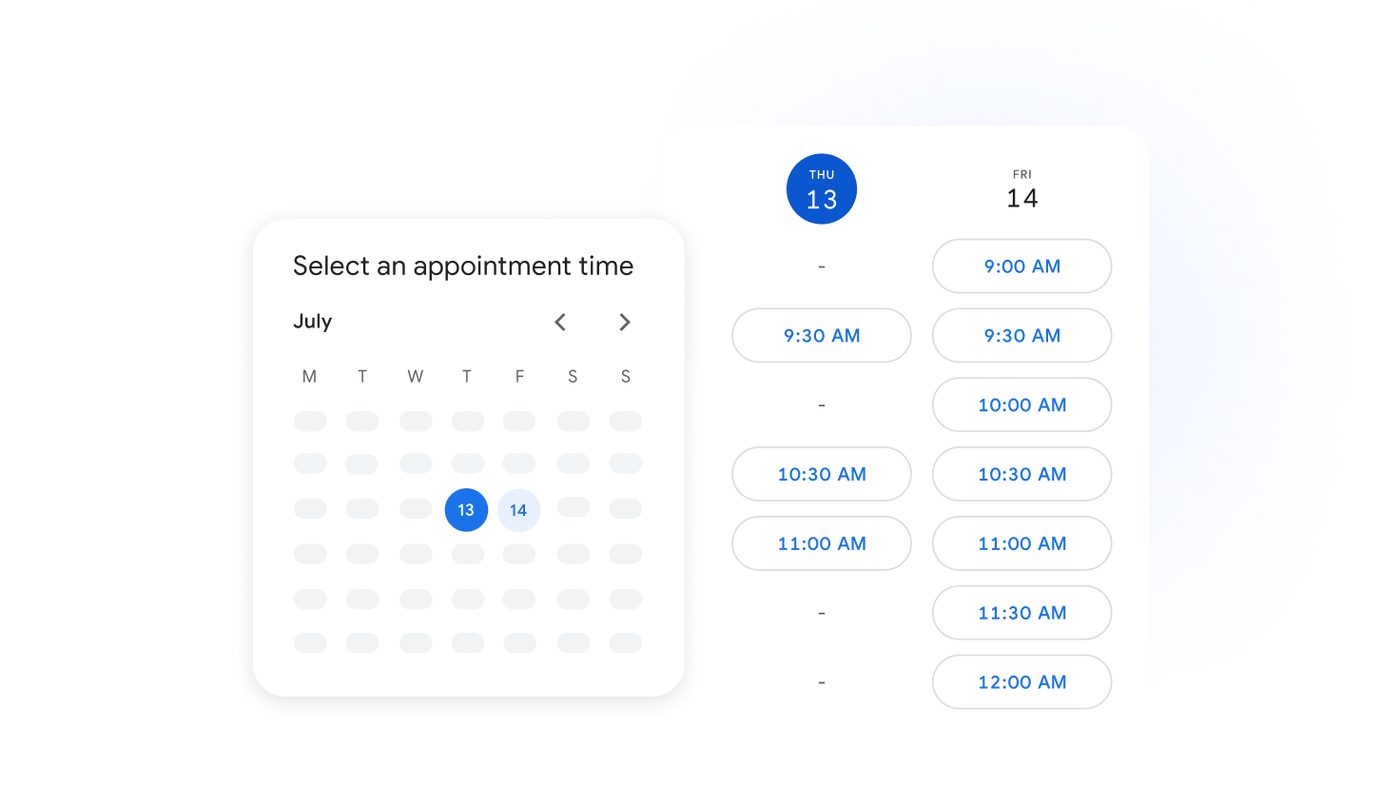
  • The AI assistant checks when the manager's calendar is busy — only busy or available, without event details — and offers the client open times in the chat, then books the chosen one.
  • The address from the deal goes into the event's location, so the manager gets directions and the «time to leave» prompt from Google before a site visit or measurement.
  • A shared team calendar of measurements, deliveries or installations is filled from the CRM, so the office sees the load per day and per crew without asking anyone.
  • Meetings that took place are written back to the deal: after the event ends, the CRM asks the manager for a short result and moves the deal to the next stage.

Automation scenarios

01

A meeting is booked in the CRM

Before the manager sets a meeting date on the deal card, then opens Google Calendar and types the same thing again — or doesn't, and the meeting only exists in the CRM.

After the event appears in the manager's calendar the moment the date is saved, the client gets an invitation to their email and can accept it, and both sides see the same time.

02

The client asks to move the meeting

Before the client calls, the manager drags the event to another day on the phone, and the CRM still shows the old date — the reminder goes out for the wrong day.

After the move in the calendar is picked up by the CRM within minutes, the deal and the task get the new date, and the client's reminder is rescheduled with it.

03

The client forgets and doesn't show up

Before the measurement was agreed a week ago, nobody reminded the client, the crew drives out to a closed door.

After the day before and an hour before, the client gets a message through the approved channel with the time and the manager's phone; a «can't make it» reply returns to the CRM as a task to reschedule, and the crew is not sent out in vain.

04

The AI assistant picks the time itself

Before «when is convenient for you?» — «and for you?» — five messages back and forth, and the manager still has to check their calendar.

After the assistant sees when the manager is busy and offers the client two or three open times right in the chat; the client picks one, the event is created with an invitation, and the manager just sees a new meeting in the calendar.

How it works technically

For those who want to check: each point links to the official documentation page it comes from.

  • An event created through the Google Calendar interface for programs appears in the calendars of all listed guests, and with the right setting each guest receives an email notification about it.

    Source: developers.google.com ↗ checked 2026-09-27
  • Google Calendar can notify an outside program on its own whenever a watched calendar changes — there is no need to keep re-reading the calendar.

    Source: developers.google.com ↗ checked 2026-09-27
  • There is an official query that returns only busy and available periods for a set of calendars — this is what lets an assistant pick a time without seeing the events themselves.

    Source: developers.google.com ↗ checked 2026-09-27
  • Reminders in Google Calendar are alerts a set time before an event starts, and notifications tell the calendar owner about changes to events.

    Source: developers.google.com ↗ checked 2026-09-27
  • Inviting someone to an event puts a copy of that event on their calendar, and the invitee can accept or decline it.

    Source: developers.google.com ↗ checked 2026-09-27
  • A program can request only the entries that changed since its last check, which is how reschedules are picked up without re-reading the whole calendar.

    Source: developers.google.com ↗ checked 2026-09-27

Limits

Google limits how many requests a calendar accepts per minute, both for the whole connection and for each user; go over and the next minute is slowed down, so bulk changes are grouped and retried with pauses, as Google itself recommends. The integration only sees the calendars the manager has granted access to from their Google account — a colleague's calendar stays invisible until it is shared, and in Google Workspace the administrator may cap what can be shared outside the company. A public connection that reads calendar data has to pass Google's app verification before it can be offered to anyone. Google's own subscription to calendar changes expires after a while and is renewed on a schedule by us; the invitation to the client goes out by email from Google, while reminders to the client through SMS or a messenger are sent from the CRM side, not by Google. Google recommends connecting as a real user rather than a service login, so the manager's account stays the owner of its events.

Screenshots

Google Calendar appointment picker: a month grid on the left and a column of open time slots on the right — the client chooses a time without messaging back and forth
The client picks a time Source: workspace.google.com ↗
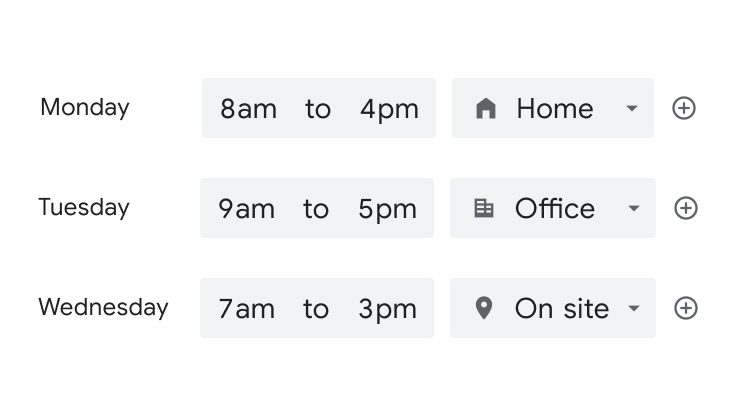
Google Calendar working hours by day — Monday to Wednesday with time ranges and a place for each day: home, office or on site
Working hours and location Source: workspace.google.com ↗

How to start

Three steps from a first message to work on your project.

  1. 01

    Leave a request

    Describe the task in the form — in text or by voice. Budget and timing are optional.

  2. 02

    We review and estimate

    A developer studies the brief, asks about anything unclear and sends an estimate.

  3. 03

    We start

    Once scope and price are agreed, the work begins.

or write to info@coreviaflow.space

Questions

Will the client see the manager's whole calendar?
No. The client only receives an invitation to their own meeting and can accept or decline it. When the assistant picks a time, it asks Google only whether the manager is busy or available — Google returns those periods without any event details.
What if the manager moves the meeting from the phone app?
That is the normal case. Google tells us about any change in a watched calendar, and the CRM updates the deal, the task and the client's reminder within minutes. The manager keeps working in the calendar they are used to.
Does the client get the reminder from Google?
Google sends the client an email invitation and, if the client accepts it, the event sits in their own calendar with their own reminders. Reminders through SMS or a messenger, with your wording and timing, are sent from the CRM side — through a channel you approve, so nothing goes to the client that you have not seen.
Do we need Google Workspace, or is a regular Google account enough?
A regular Google account with a calendar works: each manager grants access from their own account. With Google Workspace the administrator can allow the connection for the whole company at once and set company-wide sharing rules, which is handier for a team of several managers.

Tell us what needs to be connected

Describe the task in text or a voice message. We look at your setup and reply with a plan.

Pairs with Google Calendar

Related integrations

Implementation · Development · Integrations →

Google Calendar is a trademark of its owner. CoreviaFlow is not affiliated with it unless stated otherwise. Screenshots are taken from public vendor materials; the source is shown under each one.