CoreviaFlowCOREVIAFLOWDIGITAL PROJECT COMPANY Leave a request
EN UA RU
Marketing & EmailUS

HelpCrunch integration & automation

Site and messenger chats that turn into CRM contacts, with an AI assistant on the first line and a manager on the hot ones

HelpCrunch is a chat for your website and messengers, a chatbot builder with AI agents, mailings and a knowledge base in one account. We connect it to the CRM your team actually works in: a person who writes in the chat appears as a contact with the dialog attached, the AI assistant answers routine questions from your own articles, and an inquiry that needs a human is handed to the right manager with the whole history in front of them.

What we connect

  • A new chat on the site or in a connected messenger becomes a contact and a dialog in your CRM the moment it starts — with the person's name, email, page they wrote from and a link to the conversation — so nobody copies leads out of the inbox by hand.
  • HelpCrunch keeps your own client number next to its internal one, so the same person is recognised in both systems and does not turn into a duplicate after the second chat.
  • The AI assistant answers typical questions from your knowledge base and prepared answers; when it has no answer, it does not invent one — the chat goes to a person, and we make sure that person sees it in the CRM as well.
  • A hot inquiry — a request for a price, a demo, a large order — is assigned to the right manager in HelpCrunch by the rules you set, and a task with the chat link appears in the CRM so it is not lost among support questions.
  • What the client does in your system — pays an order, gets a shipment, changes a plan — is written into their HelpCrunch profile as events and internal notes, so support sees the context without opening the CRM.
  • A message can be sent into any chat on behalf of an agent from your side — for example, an automatic reply with the order status when the CRM knows it — and the chat can be reassigned or closed from there too.
  • Access is a single permanent key issued in the HelpCrunch account settings and stored on our side; every update HelpCrunch sends us carries a signature, and we check it before touching your CRM.

Automation scenarios

01

A visitor writes in the site chat

Before the dialog stays in the HelpCrunch inbox, and the manager copies the name and email into the CRM at the end of the day — or forgets.

After the contact and the dialog appear in the CRM as soon as the chat starts, with the page the person wrote from and a link to the conversation.

02

A client asks where their order is

Before the agent opens the CRM, searches by name, comes back to the chat and types the status by hand.

After the order status is already in the client's profile as a note, and a typical question gets answered by the AI assistant from your knowledge base; only an unusual case reaches a person.

03

A hot inquiry comes in outside working hours

Before a request for a price or a demo sits in the inbox until morning next to routine questions, and the sales manager finds it last.

After the chat is assigned to the responsible manager, a task with the chat link appears in the CRM, and the team gets a notification in its work chat.

04

The chat is closed and rated

Before the rating and the outcome of the conversation live only in HelpCrunch reports, and the account manager does not know the client was unhappy.

After the closed chat and its rating are written into the client's card in the CRM, so a low rating becomes a task for the responsible person.


How it works technically

For those who want to check: each point links to the official documentation page it comes from.

  • HelpCrunch itself sends updates about chats and customers to an outside system in real time, as they happen, so nothing needs to keep asking whether something has changed.

    Source: docs.helpcrunch.com ↗ checked 2026-09-27
  • The documentation describes exactly this scenario as the main use: a new customer who starts a chat via the HelpCrunch widget is immediately added to your own CRM.

    Source: docs.helpcrunch.com ↗ checked 2026-09-27
  • Every update HelpCrunch sends out is signed with a dedicated header; the receiving side can verify that the event really came from HelpCrunch.

    Source: docs.helpcrunch.com ↗ checked 2026-09-27
  • When a customer is created, your own customer id (for example, from your CRM) can be passed in a separate field; it is kept apart from the internal HelpCrunch id.

    Source: docs.helpcrunch.com ↗ checked 2026-09-27
  • Any chat can be reassigned to another agent by its id from the outside; the assignee is the agent the chat belongs to.

    Source: docs.helpcrunch.com ↗ checked 2026-09-27
  • If the answer is not available in its sources, a HelpCrunch AI agent does not make one up — it escalates the conversation to a human agent.

    Source: docs.helpcrunch.com ↗ checked 2026-09-27

Limits

Requests to HelpCrunch are capped at 120 per minute by default, so a large import is paced rather than pushed at once. Updates flow from HelpCrunch outward only; to change a customer in HelpCrunch from the CRM we send a separate request. If our receiving side fails to accept an event three times in a row, HelpCrunch switches that notification off until it is turned back on. The Telegram channel accepts direct messages to the bot only, the WhatsApp channel requires the Pro plan or higher, and once the monthly quota of AI conversations is used up the AI step in a bot flow is skipped.

Screenshots

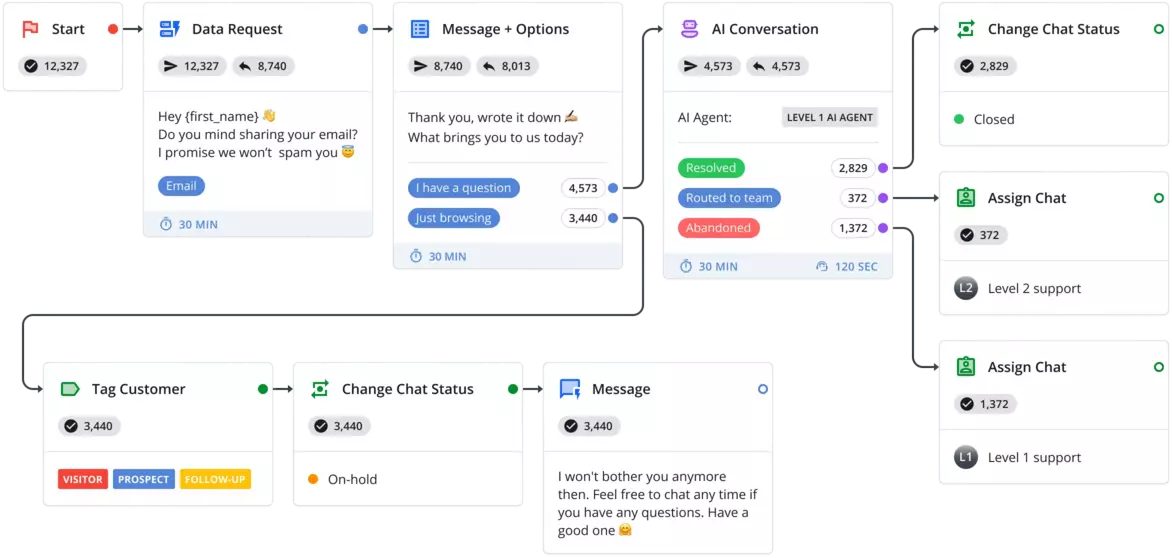
HelpCrunch chatbot builder: a flow with a data request, a question with options, an AI conversation block, and steps that tag the customer, change the chat status and assign the chat to a support level
The AI block answers, and what it cannot resolve is assigned to the team Source: helpcrunch.com ↗
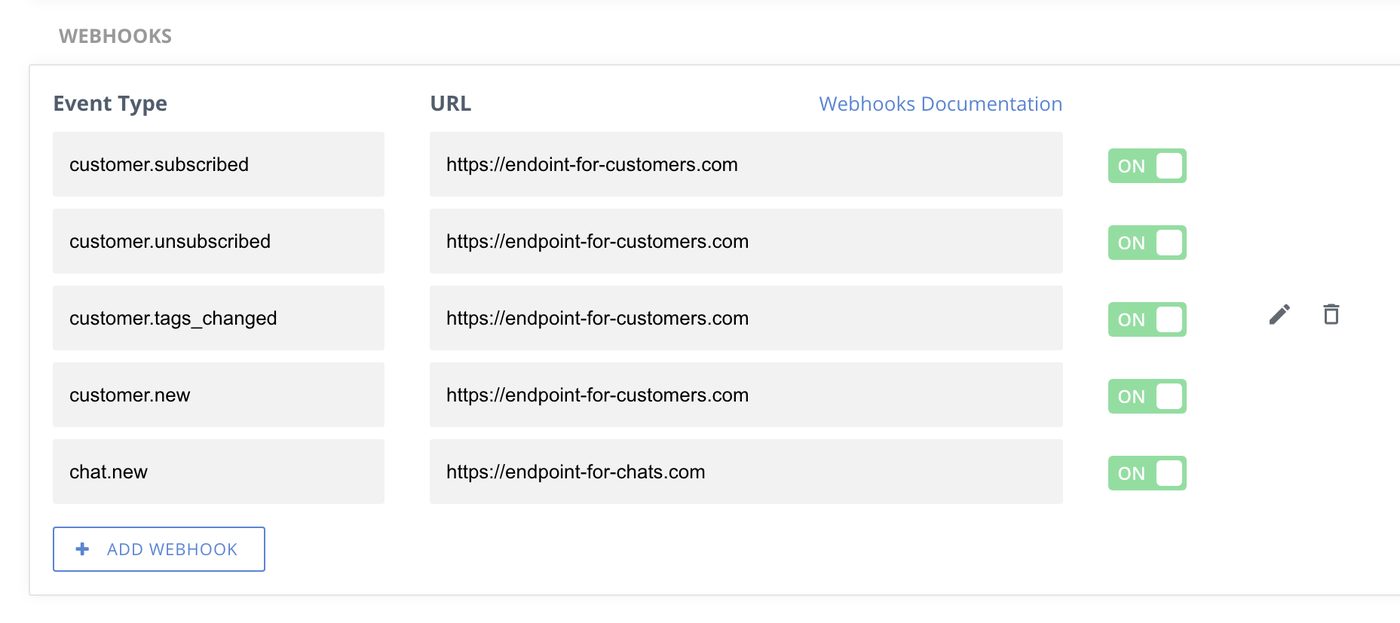
HelpCrunch settings: a list of outgoing notifications by event type — new customer, subscribed, unsubscribed, tags changed, new chat — each with a destination address and an on/off switch
Events HelpCrunch sends outward the moment they happen — the base of the sync with your CRM Source: docs.helpcrunch.com ↗

How to start

Three steps from a first message to work on your project.

  1. 01

    Leave a request

    Describe the task in the form — in text or by voice. Budget and timing are optional.

  2. 02

    We review and estimate

    A developer studies the brief, asks about anything unclear and sends an estimate.

  3. 03

    We start

    Once scope and price are agreed, the work begins.

or write to info@coreviaflow.space

Questions

Which channels can the chats come from?
From the widget on your site and from the messengers HelpCrunch connects to its own inbox — Telegram, WhatsApp Business, Viber, Facebook and Instagram — plus email. Whatever channel a chat starts in, it reaches your CRM the same way. Note that the Telegram channel takes direct messages to a bot only, and the WhatsApp channel is available from the Pro plan upwards.
Will the AI assistant make up answers to clients?
HelpCrunch AI agents answer only from the sources you give them — knowledge base articles and prepared answers. When the answer is not there, the documentation says they do not invent it and hand the conversation to a person. Our part is to make sure that person also sees the chat in the CRM.
Do we have to hand over the HelpCrunch login and password?
No. The account issues a separate permanent key in its developer settings; it is stored on our side and can be replaced in the account at any time. Every update HelpCrunch sends us is signed, and we verify the signature before writing anything into your CRM.
Can data go back from the CRM into HelpCrunch?
Yes, but by a different road. HelpCrunch pushes its own updates outward; to change something on its side — update a customer's fields, add an event, post a note or reassign a chat — we send a request to HelpCrunch. At the review we agree which system is the master record for the client, so the two never argue.

Tell us what needs to be connected

Describe the task in text or a voice message. We look at your setup and reply with a plan.