CoreviaFlowCOREVIAFLOWDIGITAL PROJECT COMPANY Leave a request
EN UA RU
Marketing & EmailUS

Google Analytics 4 integration & automation

A deal from your CRM lands in Google Analytics as an event, and the reports show which traffic actually brings paying clients

Google Analytics 4 counts what visitors do on your site and in your app. Out of the box it stops at the form: it sees the request, but not whether the request turned into a paid order. We connect Google Analytics to your CRM, so a deal, a payment or a rejected lead is sent to Analytics from your system as an event, and the reports you already use answer the question that matters: which campaigns and channels bring revenue rather than clicks. We can also pull report data into your own dashboard or spreadsheet, so the numbers come to you instead of you going to the reports.

What we connect

  • Access goes through a Google Cloud project on your side: you or we create it, switch on the Analytics data access in it and grant our connection the right to read the reports of your Analytics property. The access stays yours and can be withdrawn at any moment.
  • For sending events from the CRM, a secret key of the data stream is created in the Analytics settings; it is kept on our side and never shared with anyone, as Google itself demands.
  • We agree which CRM moments become events: a new deal, a change of stage, a payment, a rejection. Each gets a name that matches the events Google recommends for lead generation, so the standard reports pick it up without extra setup.
  • The connection matches a CRM record with a visitor: the site passes the visitor's identifier into the request form, the CRM keeps it, and the event from the CRM goes to Analytics with the same identifier, so the deal is joined to the visit that started it.
  • We mark the right events as key events in Analytics, so they show up in conversion reports and can be handed to Google Ads.
  • If you need report data outside Analytics, we set up a schedule: the connection reads the reports and writes them to a spreadsheet, a dashboard or the CRM.
  • Before launch we send test events with the validation switch on and check that they appear in the real-time and standard reports exactly as planned.

Automation scenarios

01

A deal closes in the CRM

Before the marketer sees form submissions in Analytics and counts them as results, while half of them never become orders.

After when the manager moves a deal to «won», the CRM sends the event to Analytics with the visit identifier, and the campaign report shows real closed deals next to submissions.

02

Payment comes in later than the visit

Before the order is paid by bank transfer two days after the visit, and Analytics never learns about it.

After the payment in the CRM becomes an event dated to the moment it happened, within the window Google allows, and the revenue lands in the report of the visit that brought the client.

03

Reports in your own spreadsheet

Before every Monday someone opens Analytics, clicks through the reports and copies numbers into a spreadsheet for the meeting.

After the connection reads the same reports on schedule and fills the spreadsheet or the dashboard itself, with channels, campaigns and key events for the week.

04

A lead is rejected

Before a campaign brings many requests, the manager marks most of them as spam, and the marketer keeps feeding that campaign because Analytics shows only submissions.

After the «rejected» status goes to Analytics as its own event, and the channel report shows which sources bring noise and which bring clients.


How it works technically

For those who want to check: each point links to the official documentation page it comes from.

  • Measurement Protocol sends events to Google Analytics straight from a server: this is how server-to-server and offline interactions, such as a deal from the CRM, get into the reports.

    Source: developers.google.com ↗ checked 2026-09-28
  • Server requests are signed with the api_secret of the data stream, which Google asks to keep confidential; the protocol is meant for server-side and trusted environments.

    Source: developers.google.com ↗ checked 2026-09-28
  • The Data API gives programmatic access to the same report data as the Google Analytics interface — for custom dashboards and automated reporting.

    Source: developers.google.com ↗ checked 2026-09-28
  • The Admin API manages the Google Analytics configuration, including the links between Analytics properties and Google Ads accounts.

    Source: developers.google.com ↗ checked 2026-09-28
  • Any collected event can be marked as a key event — that is how a CRM deal becomes a conversion in the reports.

    Source: support.google.com ↗ checked 2026-09-28

Limits

The programmatic connection needs a Google Cloud project, and reading reports lives by quotas: the more rows, columns, filters and dates in a request, the more of the quota it takes, and the daily quota resets at midnight Pacific time — so heavy reports are read on a schedule, not on every click. Sending events from the CRM is limited to 25 events per request, an event can be dated back by no more than 72 hours, and an event that should be joined with a site visit must arrive within 48 hours of that visit. Google itself calls this a supplement to the site tag, not a replacement: the tag on the site stays, the CRM adds what happens after the form. Analytics also ignores anything beyond its collection limits, for example an event name longer than 40 characters, so the names are agreed in advance.

Screenshots

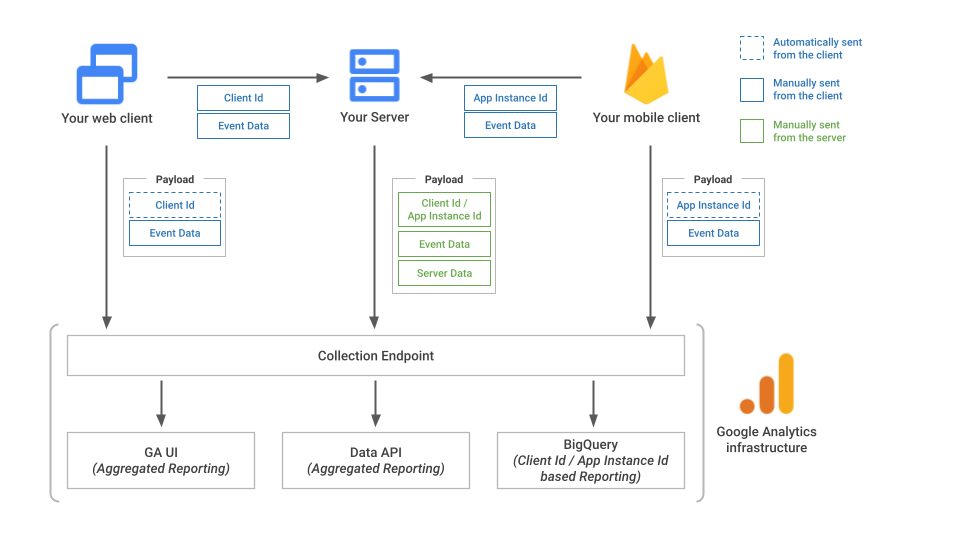
Google Analytics 4: how events from the site, the server and the app reach the reports
Diagram from the Google documentation: the site and the app send events themselves, and the client's server (for example, the CRM) can add its own events, such as a paid order, so they appear in the same reports. Source: developers.google.com ↗
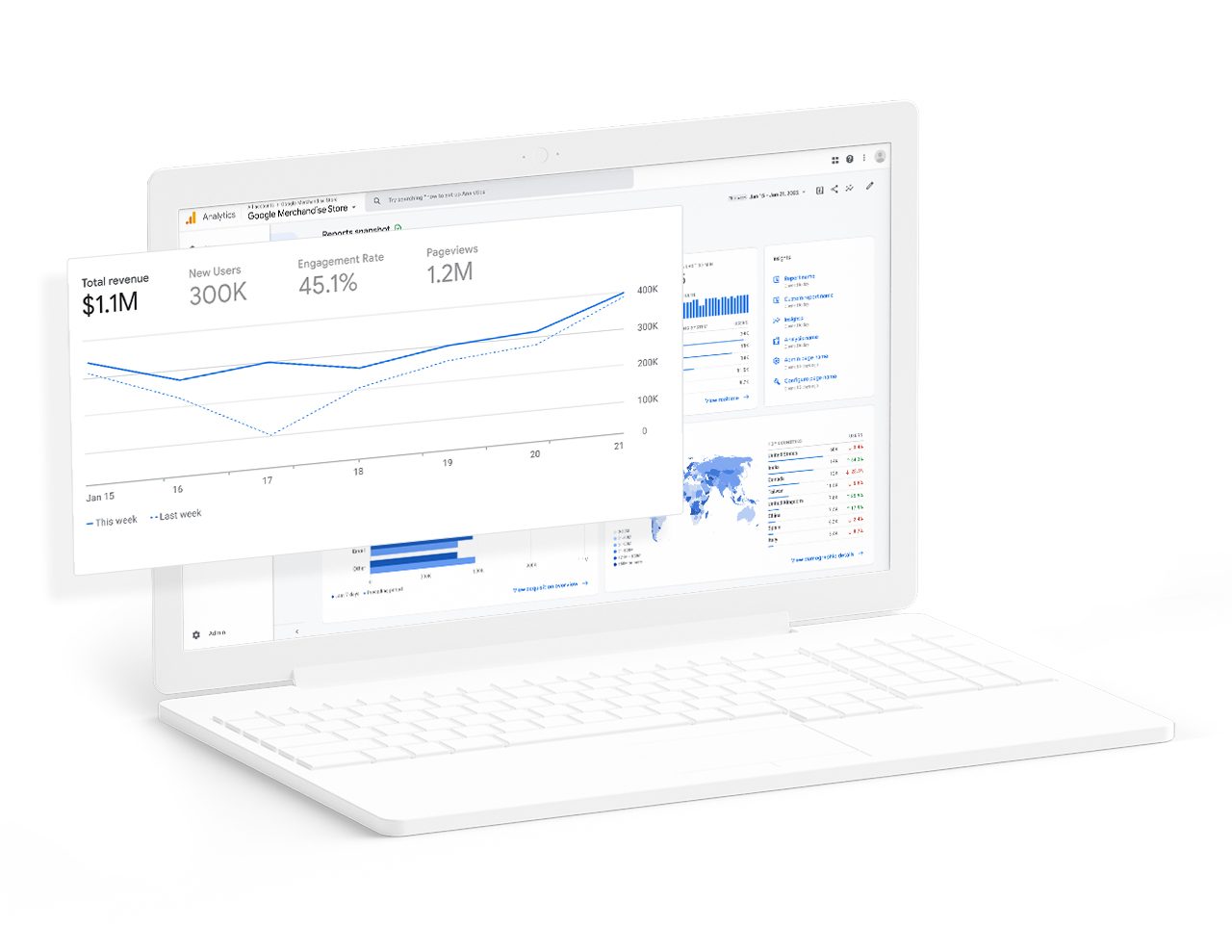
Google Analytics 4: reports snapshot with users, engagement and revenue
Reports snapshot in Google Analytics on Google's demo data: this is the data the CRM can pull in on a schedule and put next to deals and calls. Source: marketingplatform.google.com ↗

How to start

Three steps from a first message to work on your project.

  1. 01

    Leave a request

    Describe the task in the form — in text or by voice. Budget and timing are optional.

  2. 02

    We review and estimate

    A developer studies the brief, asks about anything unclear and sends an estimate.

  3. 03

    We start

    Once scope and price are agreed, the work begins.

or write to info@coreviaflow.space

Questions

Will this replace the tag on our site?
No. Google describes sending events from your system as an addition to the tag, not a replacement. The tag keeps counting visits and pages, and the CRM adds what happens after the form: the deal, the payment, the rejection.
How does Analytics know which visit the deal came from?
The site passes the visitor's identifier into the request, the CRM keeps it in the lead card, and the event from the CRM carries the same identifier. Then the deal is joined to the visit and its source. Without the identifier the event still counts, but it is not tied to the campaign.
Can we see CRM deals in Google Ads too?
Yes: once the deal event is marked as a key event in Analytics and the Analytics property is linked to the Google Ads account, Google Ads can use it as a conversion. The link is managed in the Analytics settings; we set it up as part of the connection.
How fresh are the numbers in our spreadsheet?
As fresh as the schedule we agree. Real-time reports can be read often, while heavy reports with many dimensions are read a few times a day so that the reading stays within the quota Google gives the property.

Tell us what needs to be connected

Describe the task in text or a voice message. We look at your setup and reply with a plan.